Referral traffic has always been an important way to understand who is linking to and sending visitors to your website. But with the rise of AI tools like ChatGPT, Perplexity and more, they can generate live links to your site, sending users straight to your websites content as a referral through their platform.
In Google Analytics 4 (GA4), referral traffic can be buried in the default acquisition reports. In this guide, we’ll give a step by step guide through how to isolate referral traffic in GA4, customise a standalone report and how to add it to your GA4 Library so you can quickly access it anytime. We’ll also cover how to spot inbound traffic from AI websites specifically.
Why use a Referral Report?
By default, GA4 organises traffic into channel groups (eg, Organic Search, Direct, Referral, Paid, etc). This view is helpful for a quick snapshot of overall performance, but the “Referral” category lumps all referring websites together. Drilling down into the details to see which specific sites are sending you traffic isn’t always straightforward, and unless you’re in GA4 every day, it can be easy to forget the exact steps to get there to review this data at a granular level.
If you want to understand whether visitors are finding your site through emerging sources like AI tools (ChatGPT, Perplexity, and others), creating a dedicated referral traffic report is the smarter approach. It gives you a clear, always-accessible view of referral patterns and makes it simple to track changes over time, without the hassle of repeatedly applying filters every time you log in.
How to Build a Referral Report in GA4 and Add It to Your Library.
When you first create a custom report in GA4, it won’t automatically appear in the left-hand navigation. To make it easily accessible, you’ll need to save it properly and add it to your GA4 Library. Here’s how to do it:
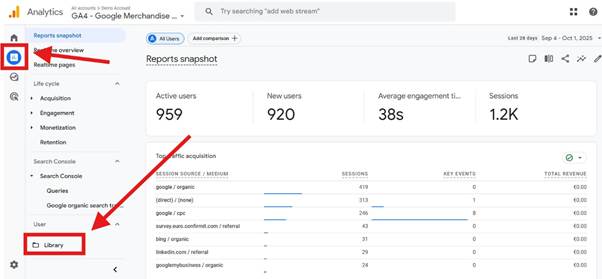
- Go to Reports → Library.
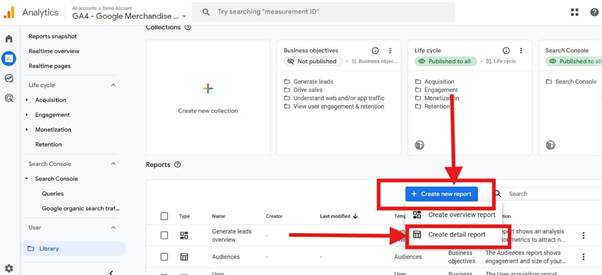
- Select Create new report → Create detail report.
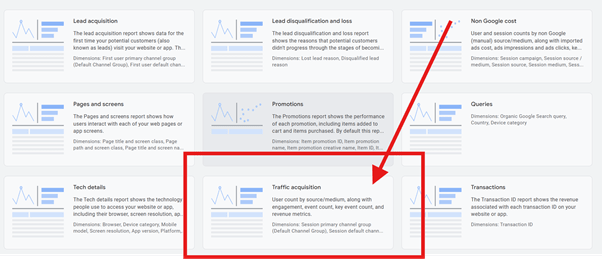
- Choose Traffic Acquisition Report as your template.
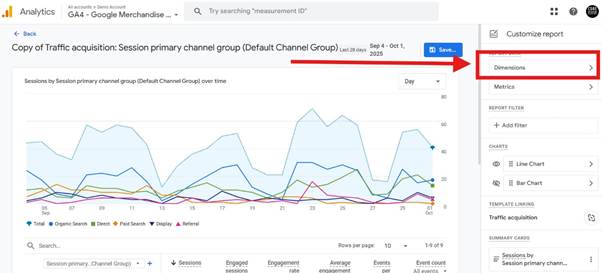
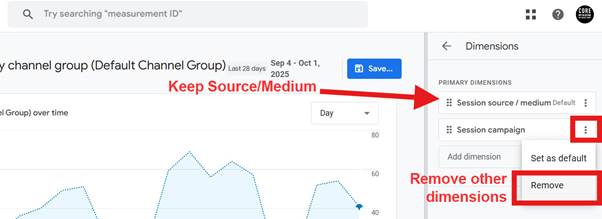
- In the top-right corner, click Dimensions. Remove all dimensions except Session source/medium, then save.
- Next, filter the data to show only referral traffic:
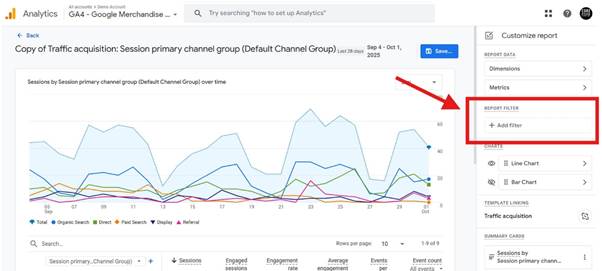
- Click + Filter (under Metrics).
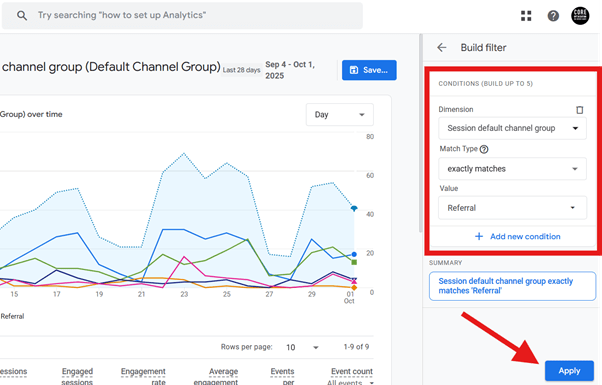
- From the Dimensions dropdown, select Session default channel group.
- Set Match type to Exactly matches.
- In the Value dropdown, select Referral and click Apply.
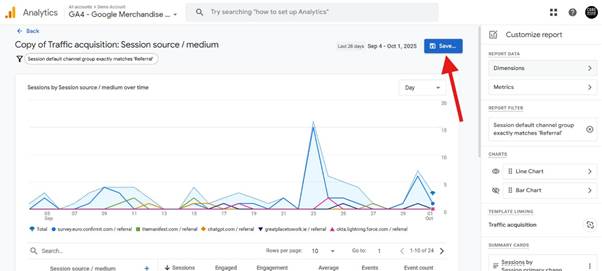
- Your report now shows only inbound referral traffic. You can customize further by adding or removing metrics (e.g., Sessions, Conversions, Revenue) via the Metrics menu in the top right.
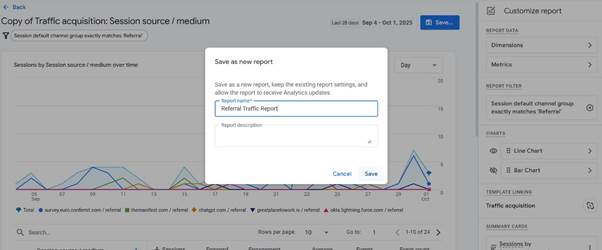
- Once you’re happy with the setup, click Save and give your report a clear name like Referral Traffic Report.
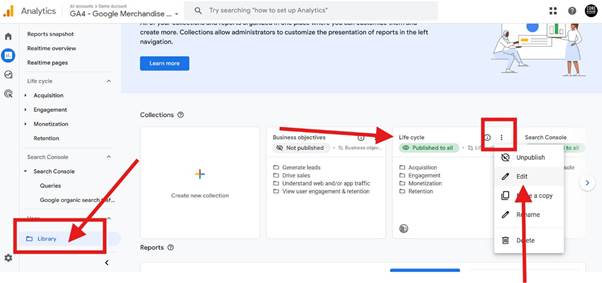
- Exit the report and return to your Library.
- Find the collection where you want the report to appear on your GA4 report (e.g., Acquisition in the “Life Cycle” group), click the 3 dots in the top right hand corner of this group and click Edit.
- On the right-hand side, locate your new report.
- Drag it into the appropriate section (or create a new topic such as “Referral Sources” for easy grouping).
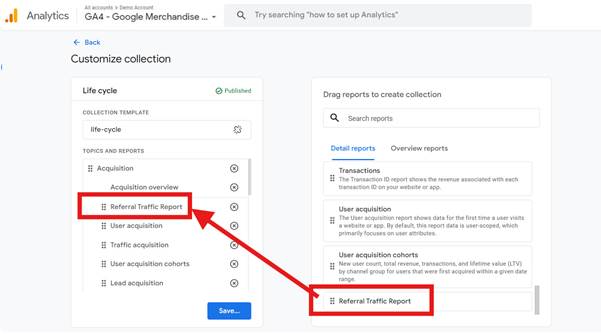
- Click Save & Publish.
Your Referral Traffic Report will now appear directly in the Reports navigation panel, meaning no more digging or re-filtering each time you need referral data. The report will now always be available at your fingertips for a quick glance at your results.
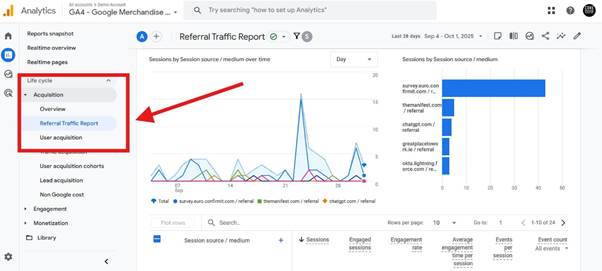
Review Your AI Referrals (ChatGPT, Perplexity, etc.)
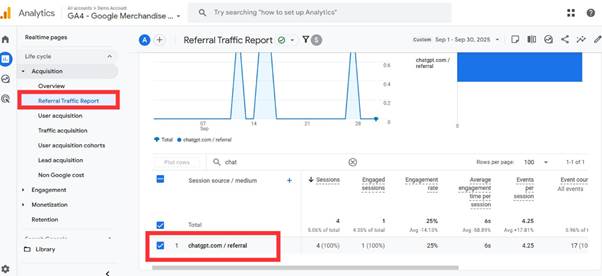
Once your referral report is set up, the next step is to check whether any of your visitors are arriving from AI-driven tools. These platforms often generate direct links to external websites, and in GA4 they typically show up as referral sources. Some of the most common domains you might see include:
- chat.openai.com / referral
- chatgpt.com / referral
- perplexity.ai / referral
- claude.ai / referral
Begin by reviewing your referral report to check whether any AI domains appear. If none are listed, it simply means your site hasn’t yet received clicks from those platforms just yet.
How to Get Your Content Noticed by AI Tools
If you want your site to be surfaced on AI platforms like ChatGPT, Perplexity or other platforms it’s important to focus on creating content that is both authoritative and highly structured. Start by providing clear, concise answers to the questions your audience is asking, and organise your content with descriptive headings, bullet points, and schema markup such as FAQs or how-to guides.
Keeping your content accurate, up to date, and trustworthy is also essential, as AI platforms tend to favor sources that demonstrate expertise and credibility. Because many AI tools pull information from search engines to generate responses, improving your site’s organic visibility and domain authority not only helps humans find your content but also increases the likelihood that AI systems will reference or link to it. Over time, this approach can turn your content into a reliable source for emerging AI-driven discovery channels.
With a standalone referral report saved to your GA4 Library, you’ll always have quick access to referral traffic in isolation. This makes it easy to track which sites (including fast-growing AI tools) are sending visitors your way.
As AI-driven discovery platforms grow, keeping an eye on inbound traffic from tools like ChatGPT and Perplexity can give you an early signal of new audience behavior.
Want to level up your GA4 tracking or SEO? Contact Core Optimisation to get started – [email protected]